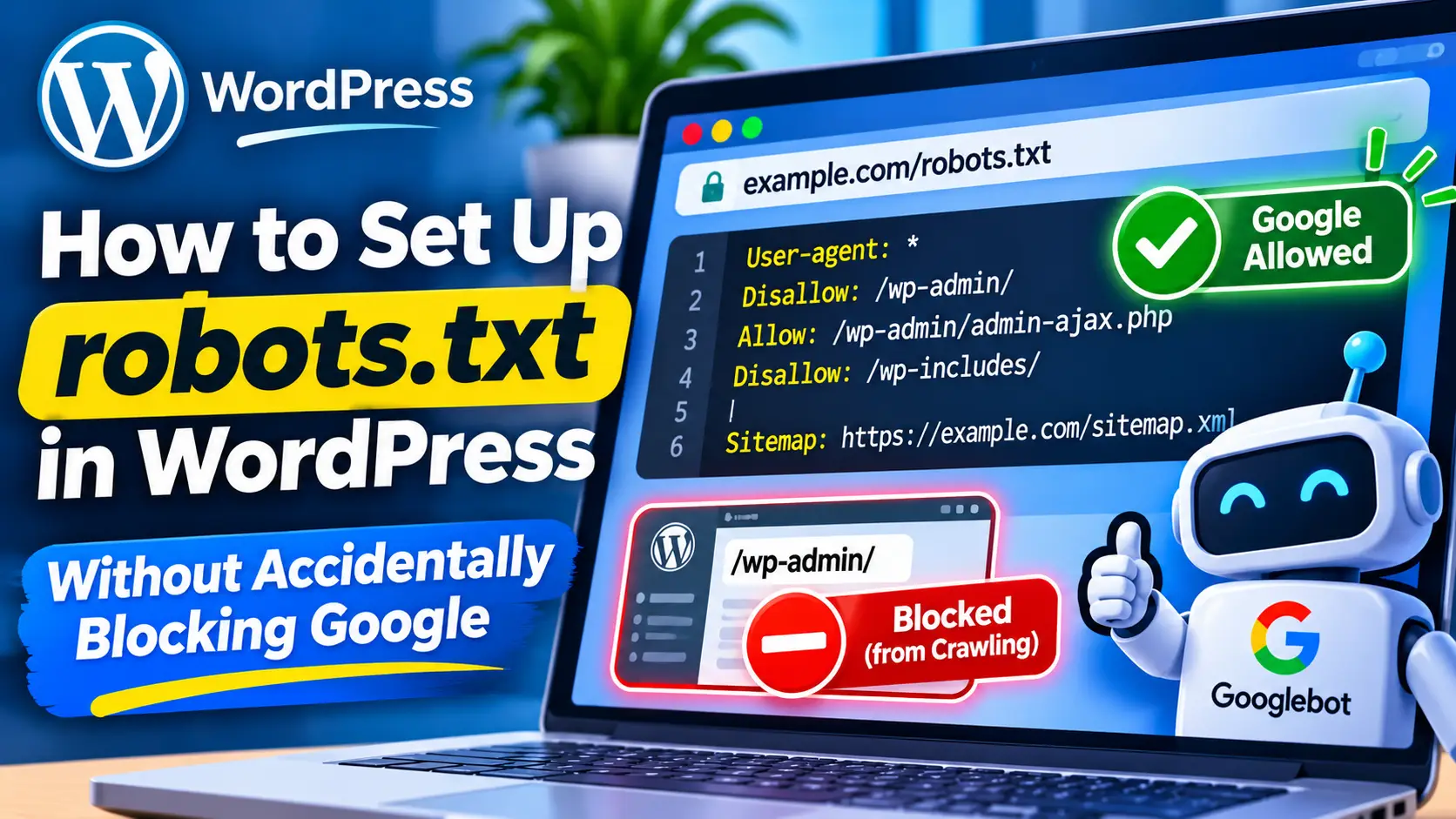
If you run a WordPress site, a robots.txt file can look deceptively simple. A few lines of text can influence how search crawlers interact with your website. But that simplicity is also why mistakes happen. One wrong rule can block important pages, prevent Google from seeing useful directives, or create confusion about why a page still appears in search.
The safest starting point is this: robots.txt is mainly for crawl control, not for hiding pages from search results. Google says site owners should not use robots.txt to hide web pages from Google Search results. If your goal is to keep a page out of search, a noindex directive, password protection, or removal is the better path.
What robots.txt actually does
A robots.txt file tells compliant crawlers which URLs or paths they may request from your site. Under RFC 9309, the file is expected at the root of the site, such as https://example.com/robots.txt, and should be plain UTF-8 text.
That means robots.txt is about crawling. It is not an access-control system and it is not a security feature. If you need real protection for private content, the RFC points to actual security controls such as authentication rather than robots rules.
robots.txt vs noindex in plain English
This is the distinction that matters most for WordPress site owners:
- robots.txt tells crawlers whether they can fetch a URL.
- noindex tells search engines not to include a page in search results.
That difference sounds small, but it changes how you should handle common SEO tasks.
For example, if you block a page in robots.txt and also expect Google to read a noindex tag on that page, you may have a problem. Google documents that if crawling is blocked, Google may not be able to see the page-level noindex directive at all. You can review that behavior in Google’s robots meta tag documentation.
So if the goal is “don’t show this page in search results,” don’t rely on robots.txt alone.
How WordPress handles search visibility now
WordPress already includes a built-in setting under Settings → Reading called Discourage search engines from indexing this site. Current WordPress documentation says this setting generates a noindex,nofollow robots meta tag rather than simply blocking the entire site via robots.txt.
That is important because older tutorials may still describe the pre-5.3 behavior. According to the WordPress Reading Settings documentation, versions before 5.2 could send broader robots.txt blocking in some cases, while newer behavior relies on robots meta output. The WordPress developer reference for wp_robots_noindex() also supports this point.
Practical takeaway: if your live public site should appear in search, make sure that checkbox is not enabled by mistake.
A beginner-safe robots.txt example for WordPress
For many public WordPress websites, a minimal robots.txt file is the safest approach:
User-agent: *
Disallow:
Sitemap: https://example.com/wp-sitemap.xml
This does two things:
- It does not block crawling by default.
- It points crawlers to your XML sitemap.
Google supports listing sitemap locations in robots.txt, and Google also notes that a sitemap is a hint, not a guarantee of crawling or indexing. See Google’s sitemap guidance for the specifics.
On the WordPress side, core XML sitemaps were introduced in WordPress 5.5, and the built-in sitemap index is exposed at /wp-sitemap.xml on supported public sites. WordPress documents this in its Version 5.5 release documentation.
What not to block
If you want to avoid accidental SEO problems, be conservative. In most cases, do not block:
- Pages you want indexed and ranked
- Pages where you expect Google to read a meta robots directive
- Important assets needed for proper rendering, unless you have a specific technical reason
Google repeatedly warns that robots rules can cause unintentional blocking, which is why testing matters.
What you might block carefully
Exact rules depend on the site, its plugins, and how its URLs are generated, so there is no universal list. Still, robots.txt can be useful when your goal is to guide crawler activity rather than remove pages from search.
A careful mindset works better than aggressive rules. If you are not sure whether a path should be blocked, the safer option is usually to leave it crawlable until you confirm the effect.
How to add or edit robots.txt in WordPress
The research supports the principles more strongly than any one plugin workflow, so keep the process simple:
- Open your existing /robots.txt and review it from the site root.
- Check whether WordPress is already outputting search visibility directives through Settings → Reading.
- If you edit robots.txt, keep changes minimal and document why each rule exists.
- Confirm your sitemap is available at /wp-sitemap.xml if you are relying on WordPress core sitemaps.
If you also maintain Google Search Console, this pairs well with a routine crawl review. Bong Pico’s guide on setting up Google Search Console for a small-business website can help if you need a starting point.
How to test whether you blocked something important
- Visit /robots.txt directly and confirm it loads from the root.
- Review the file for broad rules such as Disallow: /.
- Check WordPress Reading settings to ensure search visibility is correct for a live site.
- Verify that your sitemap URL works.
- If a page should stay out of search, use noindex instead of blocking it in robots.txt alone.
Common mistakes
| Mistake | Why it causes trouble | Safer approach |
|---|---|---|
| Blocking a page to deindex it | Google may still know the URL exists, but may not see the page’s noindex | Use noindex, password protection, or removal |
| Using Disallow: / on a live site | This can block crawling across the site | Only use sitewide blocking intentionally, such as controlled staging setups |
| Following outdated WordPress advice | Older tutorials may describe behavior that changed after WordPress 5.3 | Check current WordPress documentation |
| Adding many rules without a reason | Complexity increases the chance of accidental SEO damage | Keep robots.txt minimal |
FAQ
Does robots.txt remove a page from Google?
Not reliably. Google says robots.txt should not be used as a way to hide pages from search results.
Where should the file be located?
At the site root, such as https://example.com/robots.txt.
Does WordPress already create a sitemap?
Yes, WordPress core introduced XML sitemaps in version 5.5, with the index commonly available at /wp-sitemap.xml.
Should every WordPress site block something in robots.txt?
Not necessarily. For many small public sites, a minimal robots.txt file is safer than aggressive blocking.
The short version is simple: use robots.txt to manage crawling carefully, not to hide content. If you want a page out of search results, use noindex or real access controls. And if you change robots.txt on a WordPress site, keep the file small, clear, and easy to verify.
Sources
- Robots.txt Introduction and Guide | Google Search Central | Documentation | Google for Developers
- RFC 9309: Robots Exclusion Protocol
- Robots Exclusion Protocol
- Robots Meta Tags Specifications | Google Search Central | Documentation | Google for Developers
- Google Crawling and Indexing | Google Search Central | Documentation | Google for Developers
- Settings Reading screen | Documentation | WordPress.org
- wp_robots_noindex() – Function | Developer.WordPress.org
- Build and Submit a Sitemap | Google Search Central | Documentation | Google for Developers
- Version 5.5 – Documentation – WordPress.org
- How Google Interprets the robots.txt Specification | Google Crawling Infrastructure | Crawling infrastructure | Google for Developers
- SEO Guide for Web Developers | Google Search Central | Documentation | Google for Developers
- WP_Sitemaps_Index::get_index_url() – Method | Developer.WordPress.org
- New XML Sitemaps Functionality in WordPress 5.5 | Make WordPress Core
- Robots Meta Tags Specifications | Google Search Central | Documentation | Google for Developers
Researched on November 16, 2026. This article was generated with AI using the linked sources. Verify time-sensitive details with the original sources.